
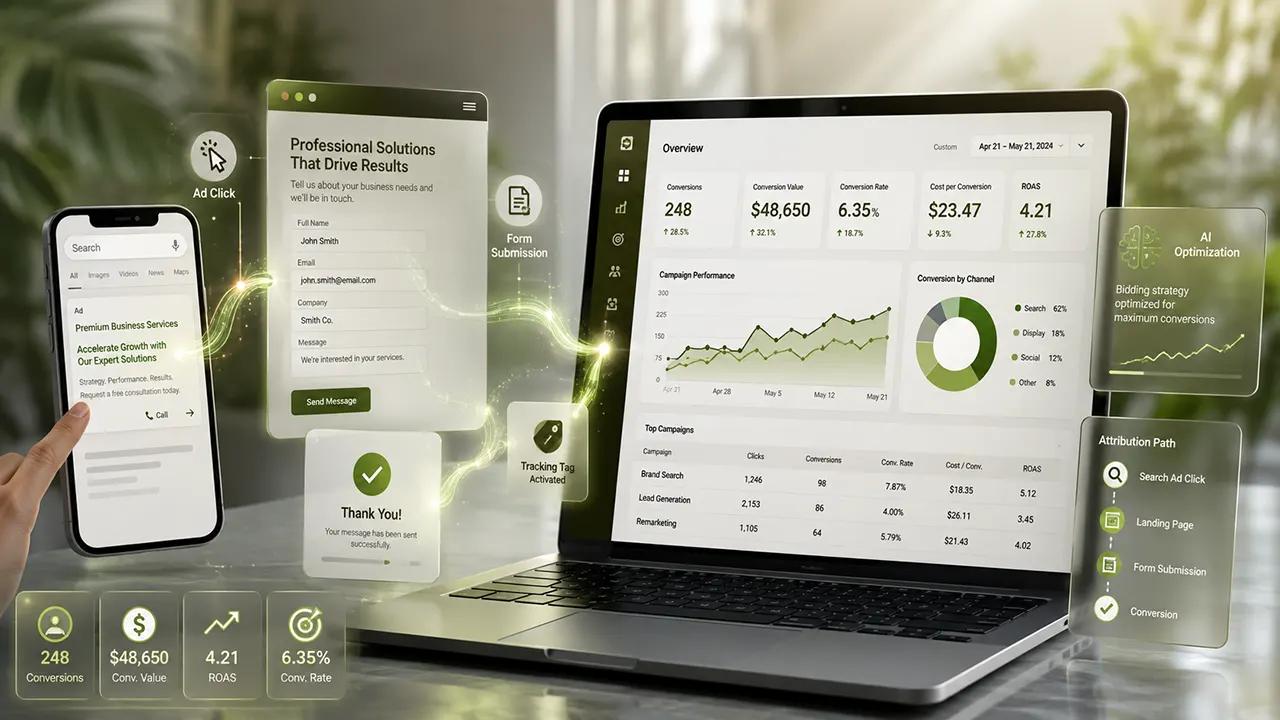
Setting up Google Ads conversion tracking involves creating a conversion action, installing a Google tag (or using Google Tag Manager), triggering the tag when a valuable action occurs, and verifying that conversions are recorded correctly. For many websites, Google Ads can detect an existing Google tag or connected GA4 property, making setup faster. Accurate conversion tracking is essential for measuring campaign performance and enabling Smart Bidding to optimize toward real business goals.
Conversion Tracking Reality
Running Google Ads without conversion tracking is like driving with your eyes closed. You may know how many people clicked your ads, but you won’t know which clicks generated leads, sales, phone calls, or other valuable actions.
That’s why learning how to set up conversion tracking in Google Ads should be one of the first tasks after creating a campaign. Accurate conversion data helps you measure return on investment (ROI), identify high-performing keywords, improve ad performance, and allow Google’s Smart Bidding strategies to optimize for results instead of clicks.
Whether you’re tracking contact form submissions, online purchases, newsletter signups, or appointment bookings, this guide walks you through every step. You’ll also learn how to choose the right implementation method, verify that tracking works correctly, and avoid mistakes that can lead to inaccurate data.
What Is Google Ads Conversion Tracking?
Google Ads conversion tracking is a feature that records valuable actions users take after clicking your ad. These actions, called conversions, can include purchases, form submissions, phone calls, app installs, or other goals that matter to your business.
Instead of measuring only clicks or impressions, conversion tracking shows which ads actually generate business results. This information allows you to calculate return on ad spend (ROAS), improve campaign performance, and make better bidding decisions.
How Google Ads Conversion Tracking Works
The process follows four simple steps:
- A user clicks your Google Ads advertisement.
- The visitor lands on your website.
- The visitor completes a predefined action, such as submitting a contact form or making a purchase.
- Google Ads records that action as a conversion and attributes it to the appropriate campaign, ad group, keyword, or audience based on your attribution settings.
For websites, Google Ads typically uses a Google tag with an event snippet or Google Tag Manager (GTM) to detect these actions. If you already use Google Analytics 4 (GA4), you can also import eligible conversion events into Google Ads.
Why Conversion Tracking Matters
Without conversion tracking, it’s difficult to know whether your advertising budget is producing real business outcomes.
Accurate conversion tracking helps you:
- Measure campaign profitability.
- Identify keywords that generate leads or sales.
- Improve Smart Bidding performance.
- Reduce wasted ad spend.
- Optimize landing pages based on actual results.
- Calculate cost per acquisition (CPA) and return on ad spend (ROAS).
Golden words: More conversion data isn’t always better. Tracking only meaningful business actions – such as qualified leads or completed purchases – gives Google’s bidding algorithms higher-quality signals than tracking every button click or page view.
What You Need Before Setting Up Conversion Tracking
Before creating your first conversion action, make sure you have access to the tools and permissions required for implementation. Preparing these items first reduces setup errors and speeds up the process.
Google Ads Account
You’ll need:
- An active Google Ads account.
- Administrative or Standard access.
- At least one campaign (recommended but not required).
If multiple people manage your advertising, confirm that your account has permission to create and edit conversion actions.
Website Access
You should have access to your website or someone who can implement tracking for you.
Depending on your platform, this may include:
- WordPress
- Shopify
- WooCommerce
- Wix
- Squarespace
- A custom-built website
If you can’t edit your website, ask your developer before starting the setup.
Google Tag or Google Tag Manager
Google recommends installing a Google tag on every page of your website. During setup, Google Ads can often detect whether a Google tag or connected GA4 property already exists, reducing the amount of manual work required.
If your website already uses Google Tag Manager, you can deploy conversion tracking without editing your site’s code directly.
As a general rule:
- Google tag works well for simpler websites with a small number of tracking needs.
- Google Tag Manager is a better choice if you manage multiple marketing tags or expect your tracking setup to grow over time.
Google Analytics 4 (Optional)
Although GA4 isn’t required, connecting it to Google Ads offers additional flexibility.
Benefits include:
- Importing existing GA4 conversions.
- Building remarketing audiences.
- Viewing cross-channel reports.
- Sharing conversion data between Google products.
If your website already has well-configured GA4 events, importing them into Google Ads may be easier than creating duplicate conversion tags.
Choose the Right Tracking Method
One of the biggest mistakes beginners make is selecting a tracking method before understanding which one best fits their website and marketing goals.
Google Ads supports several implementation methods. The right choice depends on your website, technical experience, and existing analytics setup.
Option 1: Use the Google Tag
The Google tag is the simplest implementation for many websites.
Choose this option if:
- You have a relatively simple website.
- You only need a few conversion actions.
- You don’t regularly manage multiple marketing tags.
- You prefer Google’s built-in setup process.
Advantages
- Easy to install.
- Minimal configuration.
- Officially supported.
- Suitable for many small businesses.
Limitations
- Less flexible than GTM.
- Code changes may require developer assistance.
Option 2: Use Google Tag Manager (Recommended for Most Businesses)
Google Tag Manager lets you manage tracking without repeatedly editing your website’s code.
It’s often the preferred choice for:
- Agencies
- Marketing teams
- Ecommerce stores
- Websites using multiple advertising platforms
- Businesses that frequently update tracking
Advantages
- Centralized tag management.
- Easier maintenance.
- Supports advanced triggers.
- Better scalability.
- Simplifies future marketing integrations.
Limitations
- Slightly steeper learning curve.
- Requires proper GTM configuration.
Option 3: Import Google Analytics 4 Conversions
If your website already tracks important events in GA4, you can import those conversions into Google Ads after linking the two platforms.
This approach works well when:
- GA4 events are already configured correctly.
- You want a single source of truth for website events.
- You use GA4 extensively for reporting.
Keep in mind that not every GA4 event should become a Google Ads conversion. Import only events that represent meaningful business outcomes.
Decision Framework
Use this simple guide to choose the right implementation method:
| Your Situation | Recommended Method |
|---|---|
| Small website with basic tracking needs | Google Tag |
| Growing business with multiple marketing tools | Google Tag Manager |
| Existing, well-configured GA4 events | Import GA4 Conversions |
| Ecommerce store with advanced measurement | Google Tag Manager + GA4 |
| Marketing agency managing multiple clients | Google Tag Manager |
Smart Tip: Choose the tracking method you’ll still be happy managing a year from now – not just the one that’s quickest to install today. A scalable setup saves countless hours as your marketing grows.
How to Set Up Conversion Tracking in Google Ads
Once you’ve chosen the right implementation method, you can begin configuring conversion tracking inside Google Ads. The overall process is similar whether you’re tracking leads, purchases, or other valuable actions.
Step 1: Create a Conversion Action
A conversion action tells Google Ads what success looks like for your business.
To create one:
- Sign in to your Google Ads account.
- Click Goals in the left navigation.
- Select Conversions.
- Click + Create conversion action.
- Choose the conversion source.
For most websites, select Website.
Google Ads may scan your website to detect an existing Google tag or Google Analytics 4 property. If one is found, the setup process becomes faster because some tracking components are already available.
Select the Conversion Category
Choose the category that best represents your goal.
Common examples include:
- Purchase
- Lead
- Submit lead form
- Contact
- Book appointment
- Phone call
- Subscribe
- Sign-up
Choosing the correct category helps Google optimize campaigns more effectively.
Name Your Conversion
Use descriptive names that are easy to identify later.
Examples:
- Contact Form Submission
- Quote Request
- Newsletter Signup
- Completed Purchase
- Demo Booking
Avoid generic names like “Conversion 1.”
Configure Conversion Value
Choose how Google Ads should assign value.
Options include:
- Every conversion has the same value.
- Different values for each conversion (recommended for ecommerce).
- No value.
For lead generation businesses, assigning an estimated lead value often produces better reporting than leaving the value blank.
Configure Count Settings
Google asks whether to count:
- Every conversion
- One conversion
Recommended settings:
| Business Type | Count Setting |
|---|---|
| Ecommerce | Every |
| Lead generation | One |
| Appointment booking | One |
| Quote requests | One |
| Donations | Every (usually) |
Important: Incorrect count settings are one of the most common reasons Smart Bidding performs poorly. Counting every contact form submission from the same visitor can inflate conversion numbers and mislead Google’s optimization algorithms.
Attribution Model
Google generally recommends Data-Driven Attribution for eligible accounts.
If unavailable, use the default model recommended by Google.
The attribution model determines how conversion credit is assigned across multiple interactions before a customer converts.
Step 2: Install the Google Tag
After creating the conversion action, Google Ads provides instructions for installing the required tracking code.
If your website already has a Google tag installed, Google Ads may recognize it automatically.
Otherwise, you’ll need to add the Google tag to every page of your website.
Depending on your platform, installation methods include:
- Manual HTML installation
- Google Tag Manager
- WordPress plugins
- Shopify integrations
- Website builders with built-in Google tag support
The Google tag acts as the foundation for measuring conversions across your website.
Install the Event Snippet
For website conversions, Google Ads also provides an event snippet.
Unlike the Google tag, the event snippet should trigger only when the conversion happens.
Examples include:
- Thank-you page after a contact form submission
- Order confirmation page
- Appointment confirmation page
- Successful account registration page
This tells Google exactly when a conversion has occurred.
Manual Installation vs Google Tag Manager
If you’re deciding between manual installation and GTM:
Manual installation works best when:
- Your website is small.
- Tracking requirements are simple.
- You rarely change tags.
Google Tag Manager works best when:
- You manage several marketing platforms.
- Multiple people maintain tracking.
- You want easier updates.
- You expect future growth.
Step 3: Verify the Installation
Never assume tracking works just because the code is installed.
Always test before launching campaigns.
Google provides several ways to verify your setup.
Use Google Tag Diagnostics
Inside Google Ads, open the conversion action and review the tag status.
Possible statuses include:
- Active
- No recent conversions
- Tag inactive
- Unverified
Wait until the tag is detected before relying on conversion data.
Test a Conversion
Complete the conversion yourself.
Examples:
- Submit a contact form.
- Complete a test purchase.
- Book a demo.
- Sign up for your newsletter.
After the event fires, Google should begin processing the conversion.
Keep in mind that reporting isn’t always immediate.
Check Tag Assistant
Google’s Tag Assistant is one of the easiest tools for validating implementation.
Use it to confirm:
- The Google tag loads correctly.
- The event fires on the right page.
- No duplicate tags exist.
- Required parameters are present.
This step can save hours of troubleshooting later.
Caution: Most “conversion tracking isn’t working” problems are discovered during testing – not after campaigns launch. Spending five minutes validating your implementation can prevent weeks of inaccurate reporting.
How to Set Up Conversion Tracking with Google Tag Manager
If your website already uses Google Tag Manager (GTM), you can deploy Google Ads conversion tracking without editing your website’s source code each time.
For most growing businesses, GTM is the recommended solution because it centralizes all marketing tags in one place and makes future updates much easier.
Step 1: Add the Conversion Linker Tag
Before creating your conversion tag, publish a Conversion Linker tag if one doesn’t already exist.
This tag helps Google preserve click information so conversions can be attributed correctly.
In most GTM containers:
- Create a new tag.
- Choose Conversion Linker.
- Trigger it on All Pages.
- Publish the container.
Step 2: Create the Google Ads Conversion Tracking Tag
Next:
- Create a new tag.
- Choose Google Ads Conversion Tracking.
- Enter the Conversion ID.
- Enter the Conversion Label provided by Google Ads.
- Save the tag.
Step 3: Configure the Trigger
The trigger determines when the conversion should fire.
Common triggers include:
- Form submission
- Purchase confirmation page
- Button click
- Appointment confirmation
- Successful checkout
- Custom event
Choose the trigger that represents a completed business goal – not merely user engagement.
Step 4: Test Before Publishing
Use GTM Preview Mode to verify:
- The trigger activates correctly.
- The conversion tag fires once.
- Variables contain the expected values.
- No duplicate conversions occur.
Only publish the container after successful testing.
Consideration: Avoid using button clicks alone as conversion triggers when possible. A click doesn’t always mean the desired action was completed. Triggering on a confirmed success event or thank-you page usually provides more reliable conversion data.
How to Import Google Analytics 4 (GA4) Conversions into Google Ads
If your website already tracks meaningful events in Google Analytics 4 (GA4), you can import those events into Google Ads instead of creating separate Google Ads website conversions.
This approach reduces duplicate tracking, keeps reporting consistent across Google products, and works especially well if GA4 is already configured correctly.
However, only import events that represent valuable business outcomes. Importing every GA4 event can clutter your Google Ads account and reduce the quality of Smart Bidding signals.
Step 1: Link Google Ads and GA4
Before importing conversions, the two platforms must be connected.
To link them:
- Open Google Analytics 4.
- Navigate to Admin.
- Select Google Ads Links.
- Create a new link.
- Choose your Google Ads account.
- Enable personalized advertising and auto-tagging if appropriate.
- Save the connection.
Once linked, Google Ads can access eligible GA4 conversion events.
Step 2: Mark Events as Conversions in GA4
Google Ads can only import GA4 events that are marked as Key Events (formerly Conversions).
Examples include:
- purchase
- generate_lead
- sign_up
- begin_checkout
- submit_form
- book_appointment
Review your GA4 setup before importing to ensure you’re measuring actions that truly represent business success.
Step 3: Import Conversions into Google Ads
Inside Google Ads:
- Go to Goals → Conversions.
- Click Create conversion action.
- Choose Import.
- Select Google Analytics 4 properties.
- Choose the desired Key Events.
- Import them.
Google Ads will begin using those events for reporting and optimization after data becomes available.
When Should You Import GA4 Conversions?
Importing GA4 conversions is a good choice when:
- GA4 already measures your website accurately.
- You want one central source of truth.
- You use GA4 for reporting across multiple traffic channels.
- Your e-commerce tracking is already configured in GA4.
It may not be the best choice if your Google Ads campaigns require highly customized conversion logic that isn’t available in GA4.
Important: Avoid importing every GA4 event into Google Ads. Smart Bidding performs best when it optimizes toward a small number of meaningful business outcomes rather than dozens of low-value interactions.
Recommended Conversion Tracking Setup for Different Business Types
The best conversion tracking setup depends on your business model. A local service business doesn’t need the same configuration as an ecommerce store, and tracking the wrong actions can produce misleading performance data.
Lead Generation Businesses
Examples:
- Law firms
- Marketing agencies
- Consultants
- Home services
- Real estate
- Healthcare providers
Recommended Primary Conversions
- Contact form submissions
- Quote requests
- Consultation bookings
- Phone calls
- Demo requests
Recommended Secondary Conversions
- Newsletter signups
- Resource downloads
- Live chat starts
- Video views
Best implementation
- Google Tag Manager
- Enhanced Conversions
- Lead value assignment
- Offline Conversion Import (if CRM-qualified leads are available)
Ecommerce Stores
Examples:
- Shopify
- WooCommerce
- Magento
- BigCommerce
Primary Conversions
- Purchases
Secondary Conversions
- Add to cart
- Begin checkout
- Wishlist additions
- Product views
Best implementation
- GA4 ecommerce tracking
- Google Tag Manager
- Enhanced Conversions
- Dynamic conversion values
Tracking purchase value accurately allows Google Ads to optimize toward revenue rather than simply increasing the number of transactions.
SaaS Businesses
Recommended Primary Conversions
- Free trial signups
- Demo bookings
- Paid subscriptions
Secondary Conversions
- Account creation
- Feature activation
- Email verification
SaaS companies often benefit from importing qualified leads or subscription events from their CRM after users become paying customers.
Local Businesses
Examples include:
- Dentists
- Restaurants
- Auto repair shops
- Salons
- Fitness centers
Recommended conversions include:
- Phone calls
- Appointment bookings
- Direction requests (where appropriate)
- Contact forms
Tracking only website visits usually provides little optimization value.
Tip: Your conversion actions should represent business success – not website activity. Optimizing for meaningful outcomes helps Google allocate your budget more effectively.
Verify That Conversion Tracking Works
Installing tracking is only half the job. Before spending money on ads, confirm that every conversion is recorded correctly.
Use Google Ads Diagnostics
Open your conversion action inside Google Ads and review its status.
Common statuses include:
- Active
- Recording conversions
- No recent conversions
- Needs attention
Investigate any warnings before launching campaigns.
Test with Google Tag Assistant
Google Tag Assistant helps validate your implementation by checking whether:
- The Google tag loads correctly.
- Conversion events fire as expected.
- Duplicate tags exist.
- Required parameters are passed.
Testing with Tag Assistant is one of the fastest ways to identify configuration issues.
Check GA4 DebugView
If you’re using Google Analytics 4, DebugView lets you confirm that events are being collected in real time.
Verify that:
- The expected event appears.
- Parameters are correct.
- The event is marked as a Key Event if you plan to import it into Google Ads.
Perform a Real Test Conversion
Always complete a genuine test, such as:
- Submit a contact form.
- Complete a test purchase.
- Book an appointment.
- Register a new account.
Then verify that the event appears in your measurement tools before relying on campaign data.
Conversion Verification Checklist
✅ Google tag detected
✅ Conversion event fires correctly
✅ No duplicate events
✅ Correct conversion value
✅ Proper trigger configuration
✅ Conversion appears in Google Ads or GA4
✅ Attribution settings reviewed
✅ Test conversion completed
Don’t: Don’t judge your implementation by whether the tag is installed. Judge it by whether a real business action is successfully recorded from beginning to end.
Common Google Ads Conversion Tracking Problems (and How to Fix Them)
Even a small configuration mistake can prevent Google Ads from recording conversions accurately. The good news is that most issues have straightforward solutions once you know where to look.
Problem: No Conversions Are Being Recorded
If your campaigns are generating clicks but Google Ads reports zero conversions, the tracking setup is usually incomplete or the conversion event isn’t firing.
Possible Causes
- The Google tag isn’t installed correctly.
- The event snippet never fires.
- The GTM trigger is incorrect.
- The conversion action is configured for the wrong page or event.
- The website hasn’t generated a real conversion yet.
- Auto-tagging is disabled when importing GA4 conversions.
How to Fix It
- Verify the Google tag is active.
- Test the conversion with Google Tag Assistant.
- Complete a real conversion yourself.
- Review GTM Preview Mode.
- Confirm the correct Conversion ID and Conversion Label are used.
- Wait for Google Ads to process new conversion data before assuming the setup has failed.
Problem: Duplicate Conversions
Duplicate conversions inflate performance metrics and can cause Smart Bidding to optimize for inaccurate data.
Common Causes
- Multiple tags firing for the same action.
- Both Google Ads and GA4 recording the same conversion separately.
- Duplicate GTM triggers.
- Multiple thank-you page loads.
How to Fix It
- Ensure only one conversion event fires per completed action.
- Audit GTM for duplicate tags.
- Import either the GA4 conversion or use the Google Ads conversion tag for the same goal – not both unless you understand the reporting implications.
- Test with Tag Assistant to confirm only one event is sent.
Golden Nugget: More conversion events don’t improve campaign performance if they’re inaccurate. One trustworthy conversion is far more valuable than several duplicate ones.
Problem: Incorrect Conversion Values
Incorrect values make Return on Ad Spend (ROAS) reports unreliable.
Possible Causes
- Static values used for e-commerce purchases.
- Currency mismatch.
- Dynamic values not passed correctly.
- Incorrect GTM variables.
How to Fix It
- Verify transaction values before publishing.
- Test purchases using different order amounts.
- Review ecommerce data layer variables.
- Confirm values match your e-commerce platform.
Problem: Conversion Reporting Delays
Conversions don’t always appear immediately after testing.
Normal delays may occur because Google needs time to process conversion data.
Before troubleshooting:
- Wait several hours after testing.
- Confirm the conversion actually completed.
- Review diagnostics inside Google Ads.
- Verify your attribution window.
Best Practices for Accurate Conversion Tracking
Installing conversion tracking is only the beginning. Maintaining clean, reliable conversion data is what allows Google Ads to optimize effectively over time.
Enable Enhanced Conversions
Enhanced Conversions improve measurement accuracy by securely using first-party customer information, such as email addresses, when users complete a conversion.
Benefits include:
- Better attribution
- Improved conversion measurement
- Stronger Smart Bidding signals
- More accurate reporting across devices
If your website collects customer information during conversions, Enhanced Conversions are worth enabling.
Choose Primary and Secondary Conversions Carefully
Not every tracked action should influence campaign optimization.
Primary Conversions
These should represent your most valuable business goals.
Examples:
- Purchases
- Qualified lead forms
- Appointment bookings
- Paid subscriptions
Primary conversions are used by Smart Bidding.
Secondary Conversions
These are useful for reporting but shouldn’t drive bidding.
Examples:
- Newsletter signups
- PDF downloads
- Video engagement
- Product page views
Separating these goals keeps Google’s optimization focused on outcomes that generate real business value.
Review Attribution Models
Different attribution models assign conversion credit differently.
For most advertisers, Data-Driven Attribution is the recommended option because it distributes credit based on actual user behavior rather than fixed rules.
Review attribution settings periodically, especially after significant changes to your campaigns.
Set Appropriate Conversion Windows
Your conversion window should reflect your typical sales cycle.
Examples:
| Business Type | Suggested Conversion Window |
|---|---|
| Ecommerce | Shorter windows |
| Local services | Medium windows |
| B2B lead generation | Longer windows |
| Enterprise sales | Longer windows |
A window that’s too short may miss valuable conversions, while one that’s too long can attribute conversions that were influenced by other marketing efforts.
The best conversion settings mirror how customers actually buy – not how quickly you’d like them to convert.
Common Mistakes to Avoid
Avoiding these mistakes can save hours of troubleshooting and improve campaign performance from the start.
- Tracking every website interaction as a conversion.
- Using duplicate conversion actions for the same goal.
- Forgetting to test after publishing tags.
- Choosing the wrong count setting.
- Ignoring conversion values.
- Leaving primary and secondary conversions unorganized.
- Failing to monitor conversion diagnostics regularly.
- Making major tracking changes during active campaign testing without documenting them.
- Assuming installation automatically means tracking is working.
Final Checklist Before Launching Google Ads Campaigns
Before increasing your advertising budget, confirm that everything is configured correctly.
Setup Checklist
✅ Conversion action created
✅ Google Tag Manager (GTM) installed
✅ Event triggers configured correctly
✅ Conversion value reviewed
✅ Count setting selected appropriately
✅ Attribution model configured
✅ Enhanced Conversions enabled (when applicable)
✅ Test conversion completed
✅ Google Tag Assistant verification passed
✅ Google Ads diagnostics show a healthy setup
✅ Duplicate tracking ruled out
✅ Primary and secondary conversions organized
Expert Tip: Revisit your conversion setup every few months or after major website changes. New landing pages, redesigned forms, or updated checkout flows can break tracking without obvious signs.
Frequently Asked Questions
Google Ads may detect your tag quickly, but conversion data isn’t always available immediately. After a successful test conversion, reporting can take several hours depending on processing and attribution.
For small websites with simple tracking needs, the Google tag is often enough. If you manage multiple marketing tools or expect your tracking to grow, Google Tag Manager offers greater flexibility and easier maintenance.
Yes. Many businesses use both. However, avoid counting the same business goal twice unless you clearly understand how each conversion action is used for reporting and bidding.
Primary conversions influence Smart Bidding and campaign optimization. Secondary conversions are recorded for reporting purposes but don’t directly affect automated bidding strategies.
Common reasons include incorrect triggers, inactive tags, duplicate configurations, delayed reporting, or incomplete test conversions. Start by verifying your setup with Google Tag Assistant and Google Ads diagnostics.
No. Google Ads conversion tracking works independently. However, linking GA4 provides additional reporting capabilities and allows you to import eligible conversion events.
Conclusion
Accurate conversion tracking is the foundation of successful Google Ads campaigns. When your setup measures meaningful business actions instead of basic website activity, you gain reliable data that helps improve bidding, reduce wasted ad spend, and make smarter marketing decisions.
Choose the implementation method that fits your website, verify every conversion before launching campaigns, and review your tracking regularly as your business grows. A well-maintained setup not only improves reporting but also gives Google’s automation the quality signals it needs to optimize toward your real goals.
If you’re also new to the concept behind conversion measurement, read How Google Ads Conversion Tracking Works to understand what happens behind the scenes before implementing your setup.
Need Help Setting Up Google Ads Conversion Tracking?
A small tracking error can lead to inaccurate reporting, wasted ad spend, and poor optimization decisions.
If you’d like an expert to audit your current setup, implement conversion tracking correctly, or optimize your Google Ads account for better performance, ScorUp can help. From lead-generation websites to e-commerce stores, we’ll ensure your conversion data is accurate so every advertising decision is based on reliable insights.