
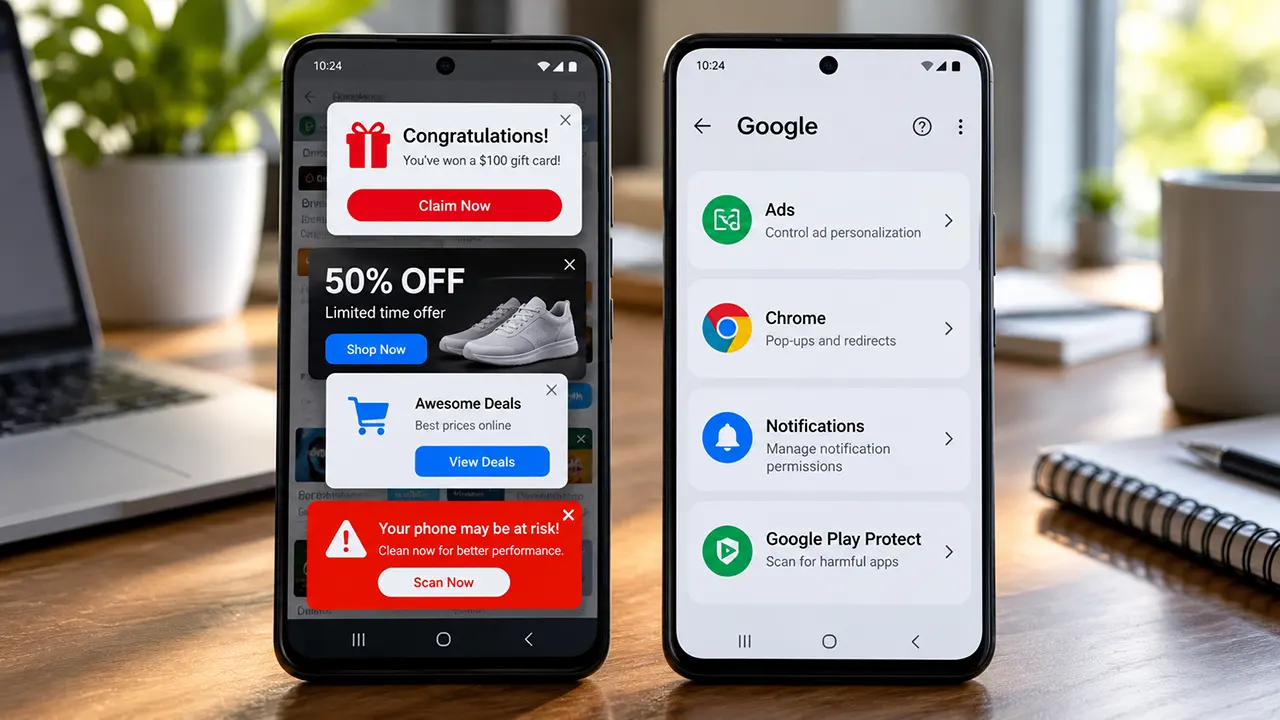
If you are searching for how to stop Google ads on Android, the first thing to know is that there is no single Android setting that removes every advertisement from your phone. Google ads, website pop-ups, app ads, notification ads, and ads caused by unwanted apps are controlled in different places.
The right fix depends on where the ad appears. If ads appear in Google Search or YouTube, manage Google’s ad personalization settings. If Chrome keeps opening pop-ups, change Chrome’s site settings. If ads appear as notifications or over other apps, check website permissions and recently installed apps. Persistent full-screen ads can sometimes indicate unwanted software. Google recommends checking problematic apps and keeping Play Protect enabled when unwanted ads continue.
Quick Answer
To stop Google ads on Android, first turn off ad personalization by going to Settings -> Google -> All services -> Privacy & security -> Ads -> Ads privacy and adjusting the available ad privacy controls. This reduces personalized advertising but does not remove every ad. If you are seeing unwanted pop-ups, redirects, or full-screen ads, also turn off Chrome pop-ups and redirects, remove suspicious website notification permissions, check recently installed apps, and make sure Google Play Protect is enabled. Persistent ads that appear outside your browser may be caused by a problematic app rather than Google Ads.
Can You Completely Stop Google Ads on Android?
You can reduce personalized Google advertising and block many types of unwanted pop-ups and intrusive ads, but you cannot use one switch to guarantee that every ad disappears from every Android app and website.
This distinction matters because turning off personalized ads is not the same as blocking ads. When you turn off personalized ads in My Ad Center, Google can still show non-personalized ads based on contextual factors such as the topic of the page or video, your current search, the time of day, or your general location. The setting also does not control ads served by companies other than Google.
So, if your goal is to stop annoying ads on Android, first identify the source.
| Where the ad appears | Likely source | What to try first |
| Google Search or YouTube | Google advertising | Turn off personalized ads |
| Chrome webpage | Website or browser | Block pop-ups and redirects |
| Notification panel | Website or app | Remove notification permission |
| Full-screen ad over other apps | Potentially an unwanted app | Remove suspicious apps |
| Inside a free Android app | App’s advertising system | Check the app’s settings or paid version |
| Several places on the phone | App, website permission, or unwanted software | Check apps, notifications, and Play Protect |
How to Turn Off Personalized Google Ads on Android
If your main concern is that Google seems to know what you are interested in and keeps showing highly targeted ads, you can turn off personalized ads through Google My Ad Center.
- Open My Ad Center while signed in to your Google Account.
- Find Personalized ads.
- Switch the setting to Off.
- Confirm your choice.
Google says My Ad Center controls whether ads are personalized on Google services such as Search and YouTube. When personalization is turned off, Google does not use the saved information and activity in your account to personalize those ads. Instead, ads can still be selected using contextual information.
This is the best option if you want to reduce personalized Google advertising, but it is not a complete Android ad blocker.
You can also use My Ad Center to manage ad topics and brands. These controls can make the ads you see more relevant or less relevant to certain subjects, but they do not remove advertising altogether.
How to Stop Pop-Up Ads in Chrome on Android
If the problem is pop-up ads while browsing, Chrome has a built-in setting for this.
On your Android phone:
- Open Chrome.
- Tap More next to the address bar.
- Tap Settings.
- Select Site settings.
- Tap Pop-ups and redirects.
- Turn off Pop-ups and redirects.
Google says Chrome blocks pop-ups by default, but legitimate websites can also use pop-up windows. If unwanted pop-ups continue after the setting is disabled, Google recommends checking website notifications and considering whether unwanted software or malware could be responsible.
This setting is useful for browser pop-ups. It does not automatically remove advertisements displayed inside Android apps.
How to Stop Website Notification Ads on Android
Sometimes what looks like a pop-up ad is actually a website notification.
A website may have previously received permission to send notifications. Those notifications can then appear outside the browser and may look like ordinary phone alerts.
To review website notifications in Chrome:
- Open Chrome.
- Tap More.
- Tap Settings.
- Select Site settings.
- Tap Notifications.
- Review the websites that are allowed to send notifications.
- Remove permission from sites you do not recognize or no longer want.
Chrome also has controls for changing notification permissions for individual websites. Google notes that Chrome may automatically block notifications from sites with intrusive or misleading notification behavior.
If the ads stop after removing a site’s notification permission, you have found the source. There is no need to install an additional ad-blocking app.
Why Am I Getting Ads on My Phone With No Apps Open?
This is one of the most important clues.
If you see full-screen advertisements even when you are not actively browsing or using an app, the problem may not be Google Search advertising. A recently installed or unwanted app may be displaying the ads.
Google’s Android troubleshooting guidance recommends restarting the device in Safe Mode and removing recently downloaded apps one at a time. After each removal, restart the phone normally and check whether the problem has disappeared.
A practical approach is:
- Think about when the ads started.
- Check apps installed or updated around that time.
- Remove apps you do not recognize or no longer need.
- Restart the phone.
- Check whether the ads continue.
- Repeat if necessary.
Do not assume the most recently installed app is definitely responsible. Test the phone after removing an app before deciding that you have found the cause.
Use Google Play Protect to Check for Problematic Apps
Android includes Google Play Protect, which can scan apps for potentially harmful behavior.
Google recommends keeping Play Protect enabled when troubleshooting unwanted ads and problematic apps. The current Google guidance directs users to:
Google Play Store -> Profile picture -> Play Protect -> Settings -> Scan apps with Play Protect
Make sure Scan apps with Play Protect is enabled.
Play Protect is not a universal ad blocker. Its role is to help identify potentially harmful apps. That makes it particularly relevant when advertisements appear outside normal browsing or inside unexpected parts of the phone.
How to Stop Pop-Up Ads on a Samsung Phone
Samsung phones use Android, so the general troubleshooting steps above still apply.
Start with Chrome if the advertisements appear while browsing:
Chrome -> Settings -> Site settings -> Pop-ups and redirects -> Off
Then check:
Chrome -> Settings -> Site settings -> Notifications
Remove notification permission from suspicious websites.
If advertisements appear across the phone rather than only in Chrome, check recently installed applications and run Play Protect. The exact names or locations of some settings can vary by Samsung device and One UI version, so do not rely on instructions written for a much older Samsung interface.
The key question is still where the advertisement appears. A Chrome pop-up and a full-screen advertisement caused by an installed app are different problems.
Can You Block Ads Inside Android Apps?
Not with Chrome’s pop-up setting alone.
An advertisement displayed inside a game, utility, social app, or other Android application is generally controlled by that application and its advertising system. Browser settings do not automatically remove it.
Your options depend on the app. Some apps offer:
- An ad-free paid version
- An in-app subscription
- A setting that limits certain promotional content
- No built-in option to remove advertising
Some Android users also use network-level or DNS-based filtering to block known advertising and tracking domains. These methods can reduce some ads, but they are not guaranteed to remove every advertisement. They can also affect legitimate content or app features.
For most users, start with the source-specific settings before moving to system-wide blocking.
What About Android’s Ad Privacy Settings?
Android also provides privacy controls related to advertising.
These controls are useful when your concern is how advertising is personalized, rather than unwanted pop-ups.
Google’s current Android documentation distinguishes ad privacy controls from simply blocking every advertisement. Your phone can provide controls over how advertising-related data and app activity are used, but these settings should not be treated as a universal ad blocker.
This is why there are two different questions:
“How do I stop personalized ads?”
Use Google’s ad privacy and My Ad Center controls.
“How do I stop a full-screen ad that suddenly appears on my phone?”
Investigate apps, website notifications, browser settings, and potentially unwanted software.
Understanding this difference can save you a lot of unnecessary troubleshooting.
What Can I Do If a Pop-Up Ad Won’t Close?
Do not tap a suspicious button simply because it says Close, Remove virus, You won, or something similar.
Instead:
- Leave the webpage or close the browser if possible.
- Do not download an app recommended by the pop-up.
- Check Chrome’s pop-up and redirect settings.
- Review website notification permissions.
- Check recently installed apps.
- Run Play Protect.
- If the problem continues, use Safe Mode to help identify a problematic app.
Google specifically recommends removing problematic recently downloaded apps when persistent unwanted ads, redirects, or other suspicious behavior occur.
A fake warning inside a webpage is not proof that your phone has a virus. Treat unexpected warnings cautiously and use the phone’s built-in security tools rather than trusting the pop-up’s instructions.
Why Am I Still Seeing Ads After Blocking Pop-Ups?
Because pop-up blocking and advertising are not the same thing.
Chrome’s pop-up control is designed to stop websites from automatically opening pop-ups and redirects. It does not remove every advertisement embedded in webpages. Chrome also has a built-in system that blocks certain intrusive ad experiences on sites that violate its standards, but ordinary advertisements can still appear.
Similarly, turning off personalized ads does not eliminate advertising. Google states that ads can still be non-personalized and based on contextual information. The setting also does not affect ads that are not shown by Google or websites that use their own advertising platforms.
That is why trying one setting and expecting every advertisement to disappear often leads to frustration.
Can I Block All Google Ads?
No single Android setting guarantees that all Google ads will disappear everywhere.
You can turn off personalized advertising through My Ad Center, block browser pop-ups and redirects, control website notifications, investigate problematic apps, and use additional filtering methods if appropriate. But these controls address different advertising sources.
If your goal is to see fewer personalized Google ads, start with My Ad Center. If your goal is to stop unexpected pop-ups, start with Chrome’s site settings. If advertisements appear across your phone, investigate installed apps and Play Protect.
Why Can’t I Block Ads on Google?
Google services can display both personalized and non-personalized ads. Turning personalization off does not mean that Google Search or YouTube becomes completely ad-free. Google explains that non-personalized ads can still be selected using contextual factors.
This is also why an Android ad blocker cannot be treated as a guaranteed solution for every Google service. Different services and apps can deliver advertisements in different ways.
If you manage advertising campaigns yourself rather than trying to stop ads as a phone user, that is a separate topic. For example, businesses can learn about Google Ads optimization or explore Google Ads call tracking to measure advertising performance. Those tools are for advertisers, not for removing ads from an Android phone.
Why Am I Suddenly Getting So Many Ads on Google?
A sudden increase in advertisements can have several explanations.
Your Google ad personalization settings may affect which ads are selected for you, but not every ad you see is necessarily personalized. Google also explains that contextual factors can influence non-personalized advertising.
If the increase is actually a stream of unexpected full-screen ads, browser redirects, or notifications, investigate your phone rather than assuming the ads are coming from Google. A recently installed app or website notification permission can produce behavior that users commonly describe as “Google ads.”
What If I Am Being Charged for Google Ads?
This is a different issue from seeing advertisements on Android.
If you are seeing a charge related to Google Ads even though you do not believe you have a Google Ads account, do not try to solve it by changing Android ad settings. Ad personalization, Chrome pop-ups, and Google Ads billing are separate systems.
Instead, review the transaction details and your Google account or payment records and use the appropriate Google billing or account support process.
The Best Way to Stop Ads on Android
If you want the shortest path to a solution, use this order:
- Ads in Google Search or YouTube: Turn off personalized ads in My Ad Center.
- Chrome pop-ups: Turn off Pop-ups and redirects.
- Unexpected website notifications: Remove notification permissions from suspicious sites.
- Full-screen ads across the phone: Check recently installed apps.
- Suspicious app behavior: Run Google Play Protect.
- Persistent problem: Test in Safe Mode and remove problematic apps.
- Ads inside a specific app: Check that app’s own ad-free or subscription options.
- Need broader filtering: Consider an advanced DNS or ad-blocking solution, while understanding its limitations.
The most important step is to identify the source before trying to block everything. Turning off personalized Google ads will not fix an unwanted app, and disabling Chrome pop-ups will not remove advertisements built into an Android application.
If your problem is persistent full-screen advertising, focus on recently installed apps, website notification permissions, and Play Protect first. If your problem is simply targeted advertising on Google services, My Ad Center is the appropriate place to start.
Frequently Asked Questions
You cannot permanently remove every Google advertisement with one Android setting. You can turn off personalized ads through My Ad Center, but Google can still show non-personalized ads based on contextual information.
First identify the source. For Chrome pop-ups, disable pop-ups and redirects. For website notifications, remove notification permissions. For unexplained full-screen ads, investigate recently installed apps and use Play Protect.
The advertisement may not actually be a Google ad. Unexpected pop-ups can come from websites, notification permissions, or problematic apps. Google recommends checking apps and website notifications when unwanted ads persist.
No single Android setting guarantees that every Google ad will be blocked. Turning off personalized ads changes how Google selects ads, but non-personalized ads can still appear.
There is no Google Ads app or universal Android component that you can simply delete to remove all advertising. The correct solution depends on whether the ads come from Google services, Chrome, websites, apps, or unwanted software.
Start with Chrome’s Settings -> Site settings -> Pop-ups and redirects setting. Then check website notifications. If ads appear outside Chrome, investigate recently installed apps and run Play Protect.
A recently installed or problematic app may be responsible, or a website may have permission to send notifications. Google recommends using Safe Mode to identify problematic apps and checking Play Protect.
Pop-up blocking only addresses certain browser pop-ups and redirects. It does not remove all advertisements from webpages, Android apps, or Google services.
Avoid tapping suspicious buttons inside the ad. Close the browser if possible, check Chrome’s pop-up settings and website notifications, then investigate recently installed apps and run Play Protect if the problem continues.
No. Google says that when personalized ads are turned off, ads on Google services can still be shown using contextual factors such as the topic of the content, time of day, location, or current activity.